使用 vscode 调试 Linux 内核
简单记录一下配置 vscode 从而调试 Linux 内核的过程,其中还有些疑惑
生成 Linux 内核配置文件 首先生成 Linux 内核的配置文件,可以使用 make menuconfig 或者 make defconfig,这里使用 make menuconfig,然后将下述配置选项打开
1
2
3
4
5
6
7
Kernel hacking --->for kernel debuggingtype and features ---->
分别对应调试信息,以及关闭 KASLR,然后保存配置文件
编译 Linux 内核 生成 compile_commands.json 由于我使用的插件是 clangd,所以需要生成 compile_commands.json 文件,Linux 提供了脚本
1 python scripts/gen_compile_commands.py
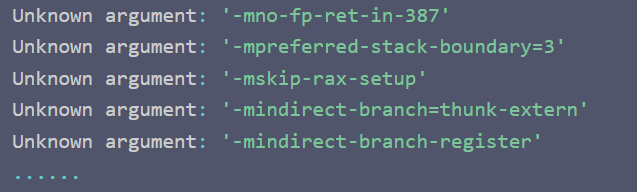
重新启动 vscode 或 restart language server,这时打开文件最上方可能会有红色的提示,即报错,内容可能如下
原因是因为 compile_commands.json 中的某些编译选项是 gcc 的,而 clangd 无法识别,所以暂时删除,方法是新建 .clangd 文件,内容如下
这个文件具体有什么用呢?
1
2
CompileFlags:
配置 vscode 调试文件 新建 .vscode/launch.json 文件 1 2 3 4 5 6 7 8 9 10 11 12 13 14 15 16 17 18 { "version" : "0.2.0" , "configurations" : [ { "name" : "(gdb) linux" , "type" : "cppdbg" , "request" : "launch" , "preLaunchTask" : "vm" , "program" : "${workspaceRoot}/vmlinux" , "miDebuggerServerAddress" : "localhost:1234" , "args" : [ ] , "stopAtEntry" : true , "cwd" : "${workspaceFolder}" , "environment" : [ ] , "MIMode" : "gdb" , } ] }
即使用 gdb 调试 vmlinux 文件,并且监听 qemu 的 1234 端口
新建 .vscode/tasks.json 文件 1 2 3 4 5 6 7 8 9 10 11 12 13 14 15 16 17 18 19 20 21 22 23 24 25 26 { "version" : "2.0.0" , "tasks" : [ { "label" : "vm" , "type" : "shell" , "command" : "qemu-system-x86_64 -kernel $LINUX_HOME/arch/x86_64/boot/bzImage -hda $BUSYBOX_HOME/rootfs.img -append \"root=/dev/sda console=ttyS0\" -s -S -smp 1 -nographic" , "isBackground" : true , "problemMatcher" : { "pattern" : [ { "regexp" : "." , "file" : 1 , "location" : 2 , "message" : 3 } ] , "background" : { "activeOnStart" : true , "beginsPattern" : "." , "endsPattern" : "." , } } } , ] }
启动 qemu 模拟器,并且将该任务设置为 background,并且需要设置对应的 problemMatcher
这一步没太明白,vscode 的 problemMatcher 具体有什么用以及怎么用
调试 最后按下 F5 即可开始调试,这时会启动 qemu 模拟器,然后连接 gdb,这时可以设置断点,查看变量等等
参考资料